
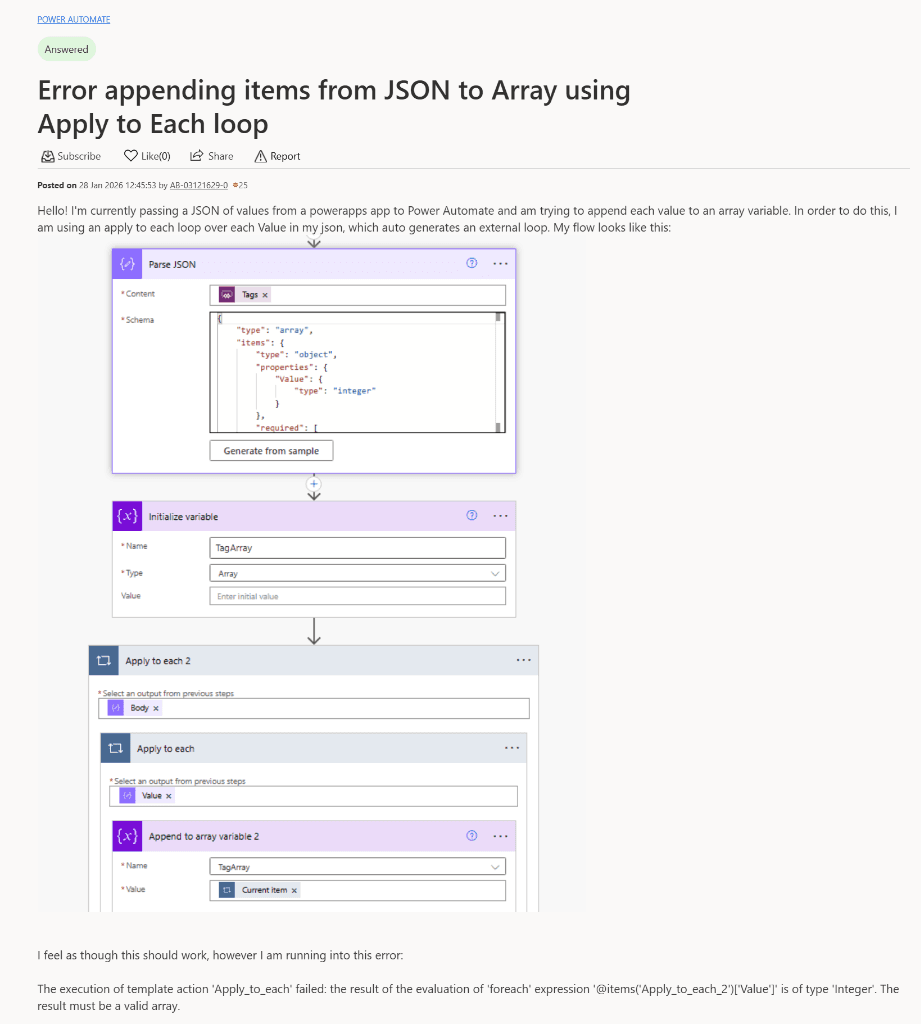
You've built your flow, you're parsing your JSON, and you're ready to collect all those values into one nice array variable. But then, you hit the dreaded 'Apply to each' error.
One of the most common frustrations for Power Automate developers is the "confusion magnet" that is JSON + Apply to each. You try to append a value to an array, Power Automate auto-generates an extra loop you didn't ask for, and then the whole thing fails with a type error.
The problem usually looks like this in your run history:
The execution of template action 'Apply_to_each' failed: the result of the evaluation of 'foreach' expression '@items('Apply_to_each_2')['Value']' is of type 'Integer'. The result must be a valid array.Why it breaks
The core issue is a type mismatch between what Power Automate expects and what your JSON schema provides. When you use the "Parse JSON" action, Power Automate understands the structure of your data.
If your JSON looks like this:
[
  { "Tag": 101, "Value": "Alpha" },
  { "Tag": 102, "Value": "Beta" }
]
It is already an Array of Objects.
The "confusion magnet" happens when you try to loop through the broad array, and then try to loop again inside it because you selected a specific property. Power Automate thinks that specific property is also an array, when it's actually just a single value (like an Integer or String).
The Correct Pattern: No Nested Loops Needed
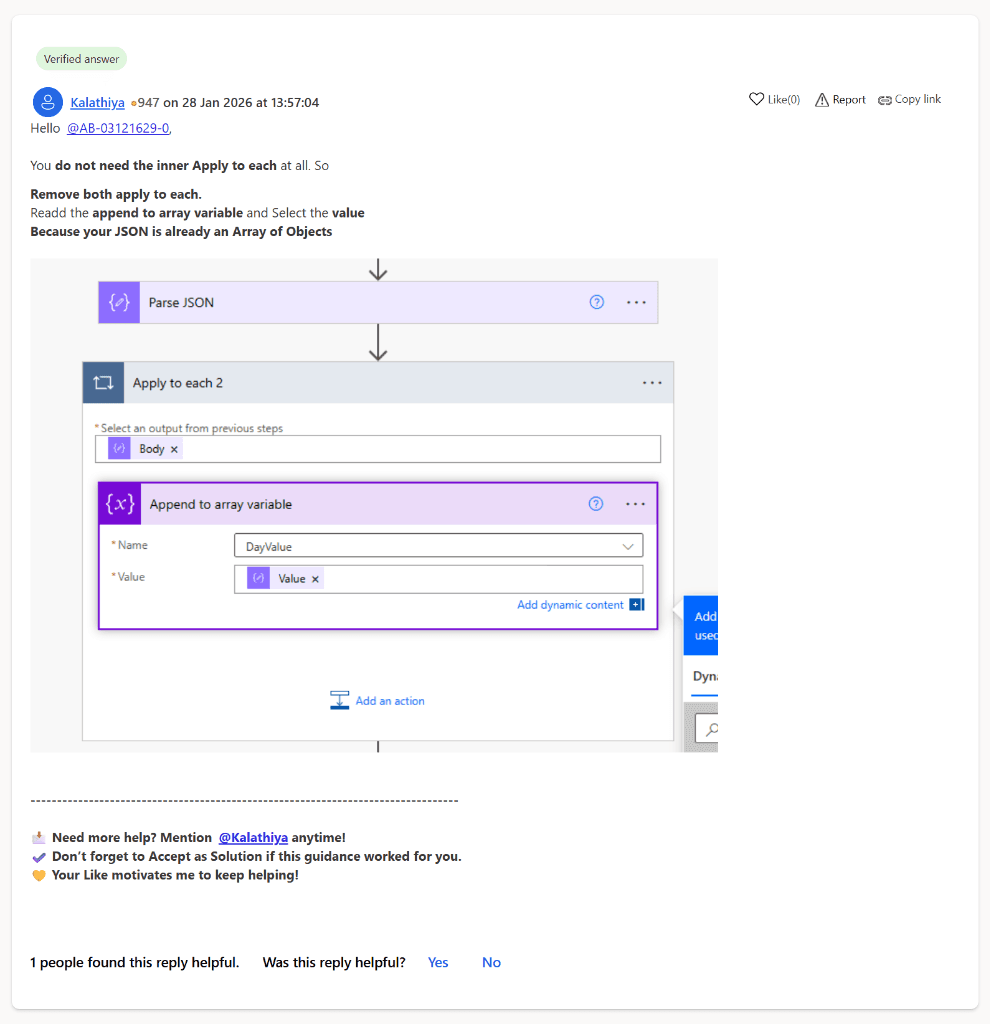
The verified solution is simpler than you think: You do not need the inner Apply to each.
If your goal is to extract a specific property from every object in your JSON array and put those into a new array variable, follow this pattern:
- Initialize Variable: Create your
Arrayvariable at the start of the flow. - Parse JSON: Pass your raw data and provide a schema.
- Apply to Each: Select the Body (the root array) of your Parse JSON action.
- Append to Array Variable: Select your variable and, for the value, choose the specific property from the dynamic content.
Why this works:
By selecting the property directly within the first loop, you are telling Power Automate: "For every object in this array, take this one specific value and add it to my list."
Because the value is a single item (Integer, String, etc.), it appends perfectly to your array variable without needing a second loop.
Advanced Tip: Using 'Select' for Better Performance
If you have a massive dataset, "Apply to each" can be slow. A better, more "Level-Up" pattern is using the Select action.
- From: Your Parse JSON Body.
- Map: Click the small icon on the right to switch from Key-Value mode to Text mode.
- Value: Select the property you want.
The output of this single action is a clean array of just those values—no loops required. You can then use this output directly in your next action or set your variable equal to it.
Quick Summary
- Nested loops are a red flag: If you see "Apply to each 2" inside "Apply to each 1," pause and check your data types.
- Parse JSON → Apply to each → Append: Keep it flat.
- Use Select for speed: If you're processing hundreds of items, skip the loops entirely.
Stop fighting the loops and start building cleaner, faster automations!