
If your business runs on reports, it runs on CSV files. But getting that data into SharePoint for tracking and collaboration usually involves a lot of 'Ctrl+C' and 'Ctrl+V'.
Importing CSV data to SharePoint is one of the most requested automations in the IT and Finance world. While premium connectors, Office Scripts, Power Query, or custom code can make this safer, you can build a useful import tool using standard actions when the CSV format is simple and predictable.
Last verified: May 13, 2026. The split-based pattern below is not a full RFC-compliant CSV parser. It is appropriate for clean files with no embedded commas, quotes, or multi-line values. For messy or high-volume files, use a real parser in Office Scripts, Azure Functions, Python, or another controlled processing layer.
In this guide, we'll walk through how to handle headers, convert data types, and avoid common pitfalls.
The Scenario
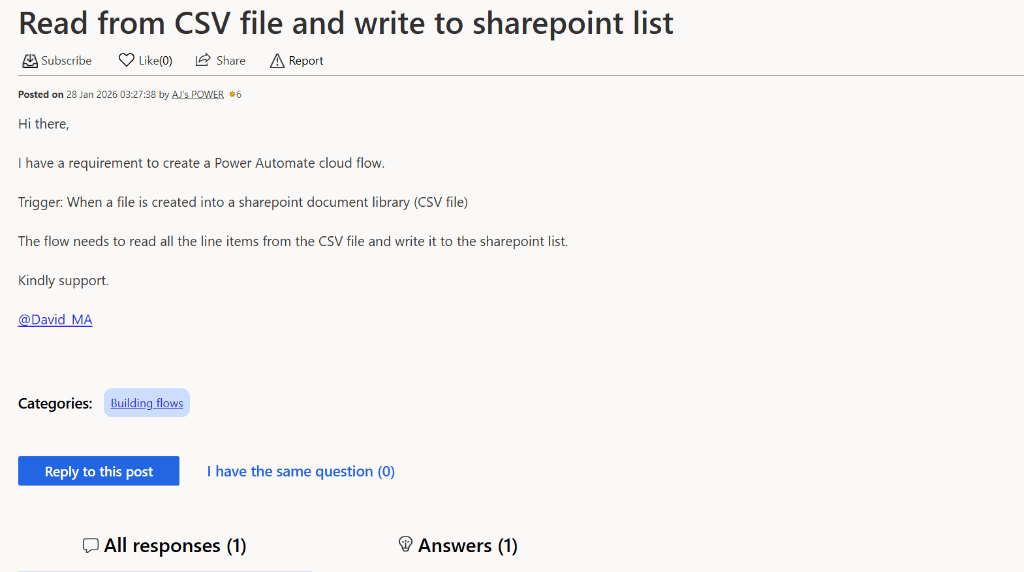
You have a process where a CSV file is dropped into a SharePoint Document Library. Your goal is to trigger a flow that reads every row and creates a corresponding item in a SharePoint List.
Step 1: The Trigger
Start with the "When a file is created (properties only)" trigger pointed at your Document Library.
Pro Tip: Filter early so the flow only processes
.csvfiles. If the SharePoint trigger’s filter-query syntax does not support the exact filename expression you want, add a first-step condition that checks the file name or extension before reading content.
Step 2: Get the Content
Next, use the "Get file content" action. This retrieves the actual text inside the CSV.
Step 3: Parsing the CSV (The Non-Premium Way)
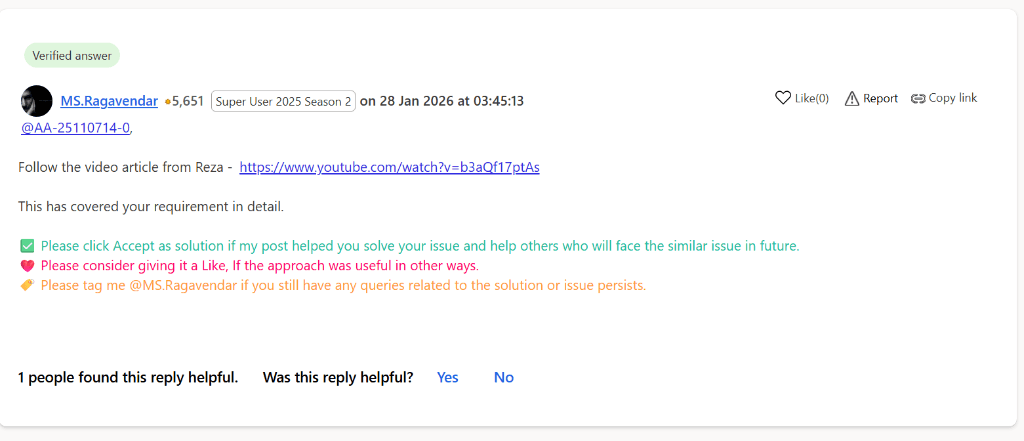
This is where most people get stuck. Without a dedicated parser, this standard-action approach does manual parsing and assumes a simple CSV shape.
- Split into Lines: Use a
Composeaction with the expressionsplit(outputs('Get_file_content')?['body'], '\n'). This gives you an array where each item is one row. - Handle Headers: Usually, the first line (
outputs('Split_lines')[0]) is your header row. You'll want to skip this when creating items. - Loop through Rows: Use an Apply to each loop on the remainder of your array:
skip(outputs('Split_lines'), 1).
Step 4: Map Data to SharePoint
Inside the loop, you'll need another split to separate the columns (usually by a comma ,).
Example expression for a column: split(items('Apply_to_each'), ',')[0] for the first column.
Then, add a "Create item" SharePoint action. Map your split columns to your specific List fields.
Common Gotchas & How to Fix Them
1. Handling "Messy" Data
CSV files often have extra spaces or hidden characters. Always use the trim() function around your column splits to clean up the data before it hits SharePoint.
trim(split(items('Apply_to_each'), ',')[0])
2. Date Formatting
SharePoint is picky about dates. If your CSV has a date like 01/25/2026, use a formatDateTime() expression to convert it into the ISO format SharePoint expects (YYYY-MM-DD).
3. Commas within Values
If your CSV values contain commas (e.g., "New York, NY"), a simple split(..., ',') will break. In this case, it's safer to use a Power Query approach or a specialized script if you have high volume.
Why this is better than Excel
While "Import from Excel" is a built-in SharePoint feature, it's manual. This Power Automate method is automated. As soon as the file lands, the data is synced. No human intervention required.
Next Steps
This pattern is a building block. You can add Error Handling to log failed rows to a separate list or send a Completion Email once the import is finished.
Ready to level up? Check out my post on Performance Tips for Large Data Transfers to make your imports even faster.