
The "Admin Gap"
Most admins know how to click a "Block" button in a cloud portal like Intune. But when the portal is down, or the company hasn't paid for Business Premium licensing, most lose their ability to secure the environment.
This lab demonstrates the Decentralized Baseline: the set of commands and policies that turn a "standard" workstation into a hardened asset without using a management suite.
Phase 1: The Local Security Policy (LSP) Audit
Before using automation, you must understand the Local Security Policy (secpol.msc).
The Manual Check (Proof of Concept)
- Press
Win + R, typesecpol.msc, and hit Enter. - Navigate to Local Policies > User Rights Assignment.
- The Action: Ensure "Access this computer from the network" is limited only to authorized users, not "Everyone."
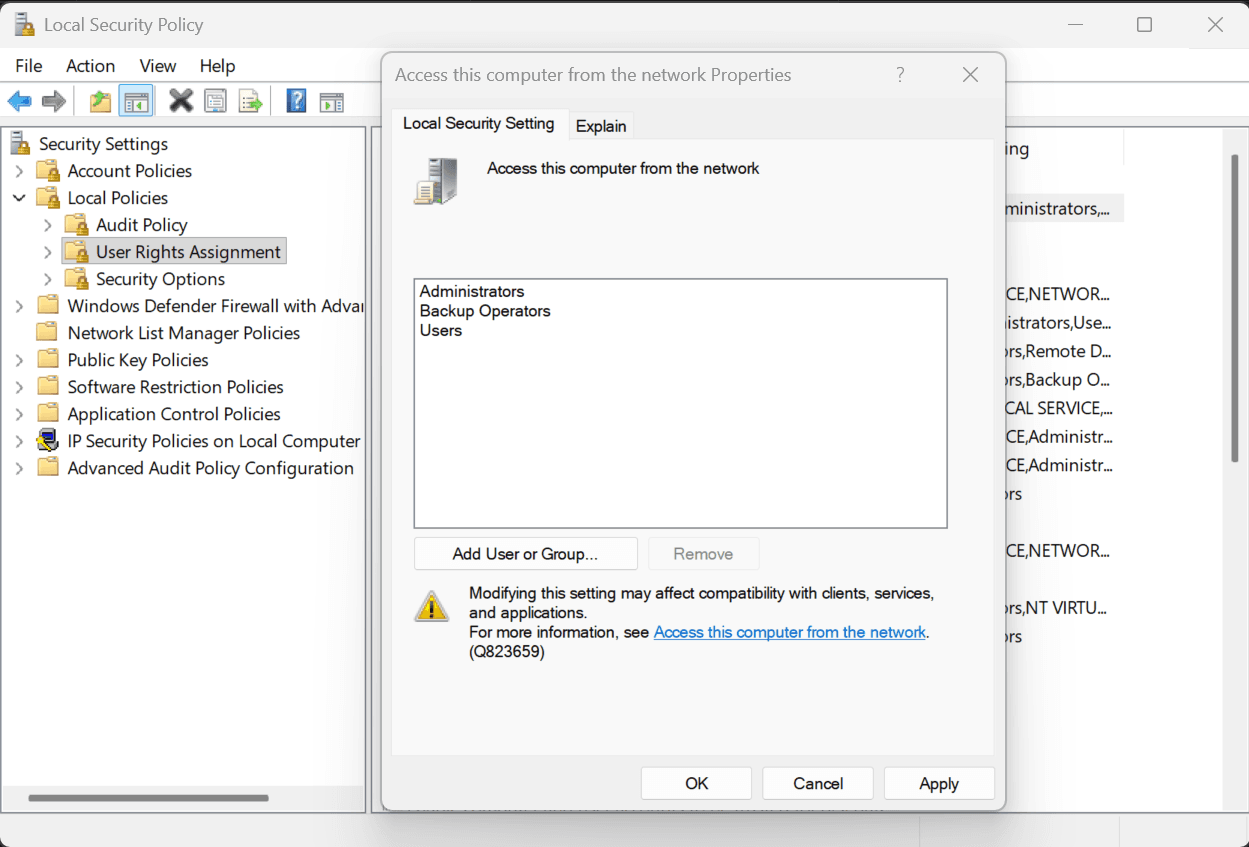 Restricting network access in the Local Security Policy to prevent unauthorized traversal.
The Professional Way: PowerShell Audit
As a senior admin, you don't use the UI. You use secedit.exe to export and analyze the configuration.
# Export local security policy to a temp file
secedit /export /cfg C:\tmp\secpol.cfg

# Search the file for high-risk configurations (e.g., Guest account status)
Select-String -Path C:\tmp\secpol.cfg -Pattern "EnableGuestAccount = 0"
Phase 2: Attack Surface Reduction (ASR) via Registry
Without Intune's ASR rules, we use the Registry to block common attack vectors. This is where we prove we understand STIG (Security Technical Implementation Guide) alignment.
Turning Off AutoPlay (Common Malware Entry)
# Disable AutoPlay for all drives
Set-ItemProperty -Path "HKLM:\SOFTWARE\Microsoft\Windows\CurrentVersion\Policies\Explorer" -Name "NoDriveTypeAutoRun" -Value 0xFF -Type DWord
# Verify the change
Get-ItemProperty -Path "HKLM:\SOFTWARE\Microsoft\Windows\CurrentVersion\Policies\Explorer" -Name "NoDriveTypeAutoRun"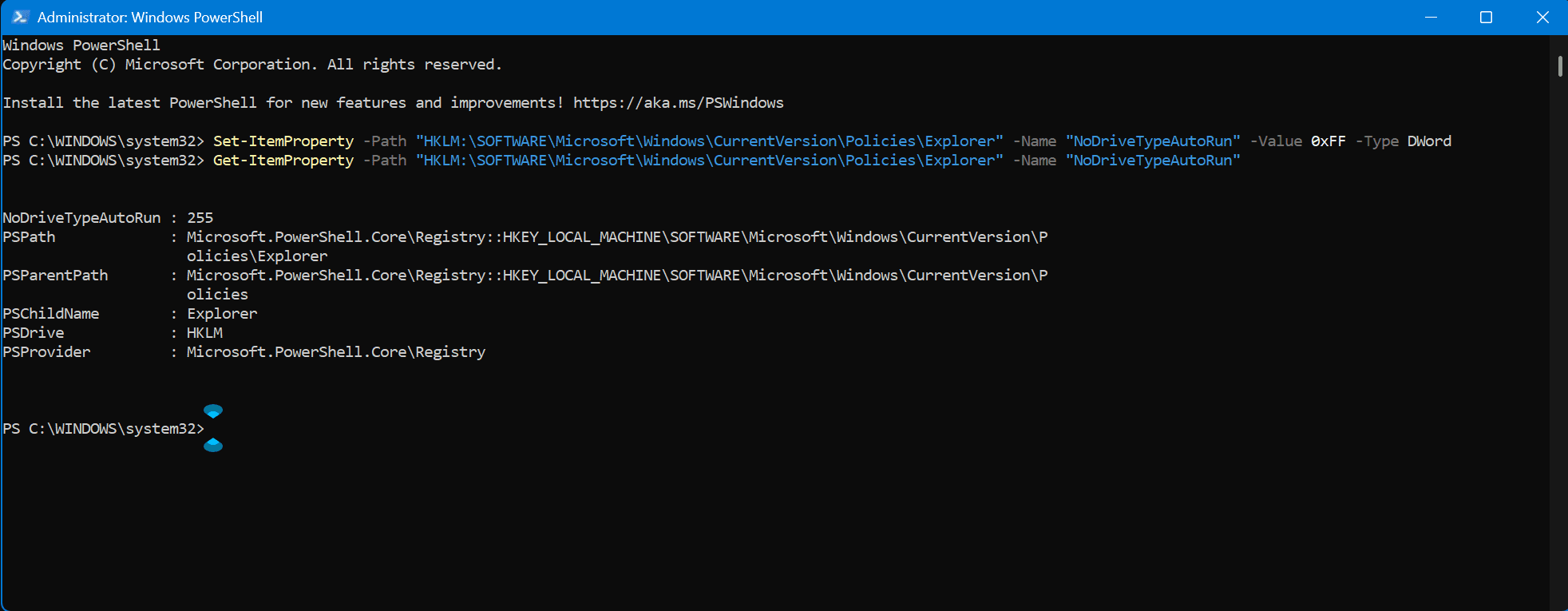 Applying STIG-aligned attack surface reduction by disabling AutoPlay for all drive types.
Rolling Back: The "Standard" Default (0x91)
To get things back to the way Windows usually handles them, you have two main options. For most modern versions of Windows, the default value is 0x91 (145 in decimal). This allows AutoPlay for things like CDs and DVDs but keeps it restricted for unknown or network drives.
# Revert to standard Windows default
Set-ItemProperty -Path "HKLM:\SOFTWARE\Microsoft\Windows\CurrentVersion\Policies\Explorer" -Name "NoDriveTypeAutoRun" -Value 0x91 -Type DWord
What does 0x91 actually do? Windows uses a "bitmask" to decide which drives are blocked:
0x01: Disables AutoRun on unknown drive types.0x10: Disables AutoRun on network drives.0x80: Disables AutoRun on unknown types (reserved).
Total: 0x01 + 0x10 + 0x80 = 0x91.
By changing it back from 0xFF to 0x91, you are "whitelisting" your removable USB drives and CD-ROMs again so the pop-up menu appears when you plug them in.
Option 2: The "Clean Slate" (Delete)
If you want to remove the restriction entirely and let Windows use its hardcoded internal logic (as if you never messed with the registry), you can just delete that specific property:
# Remove the property entirely
Remove-ItemProperty -Path "HKLM:\SOFTWARE\Microsoft\Windows\CurrentVersion\Policies\Explorer" -Name "NoDriveTypeAutoRun"
# Verify removal
Get-ItemProperty -Path "HKLM:\SOFTWARE\Microsoft\Windows\CurrentVersion\Policies\Explorer" -Name "NoDriveTypeAutoRun"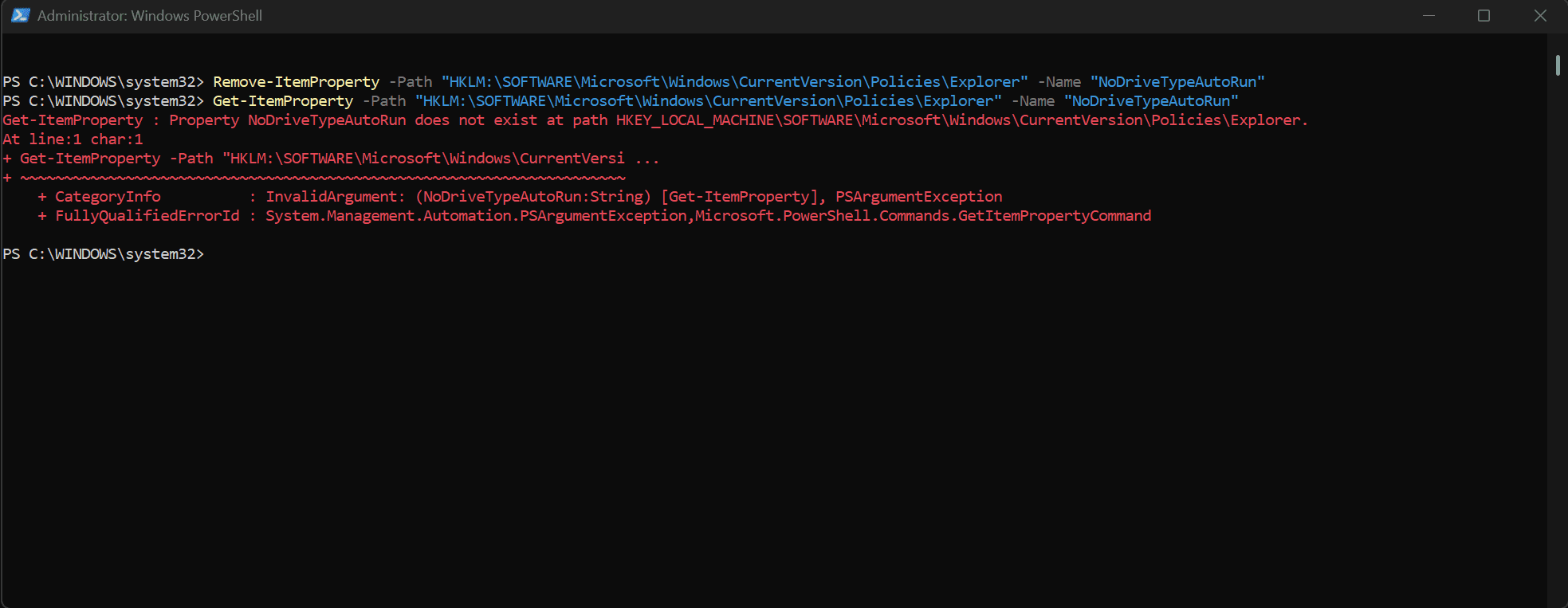 Removing the property entirely to revert to Windows default logic.
[!TIP] Just like before, you’ll likely need to restart your computer or restart Windows Explorer in Task Manager for the change to take effect and the pop-ups to return.
Phase 3: BitLocker Orchestration & Audit
Encryption is non-negotiable for enterprise mobility. However, before enforcing encryption, you must be able to audit the current state of the fleet.
The Audit Command
We use PowerShell to query the volume status and key protectors.
# Check BitLocker Status for the OS Drive
Get-BitLockerVolume -MountPoint "C:"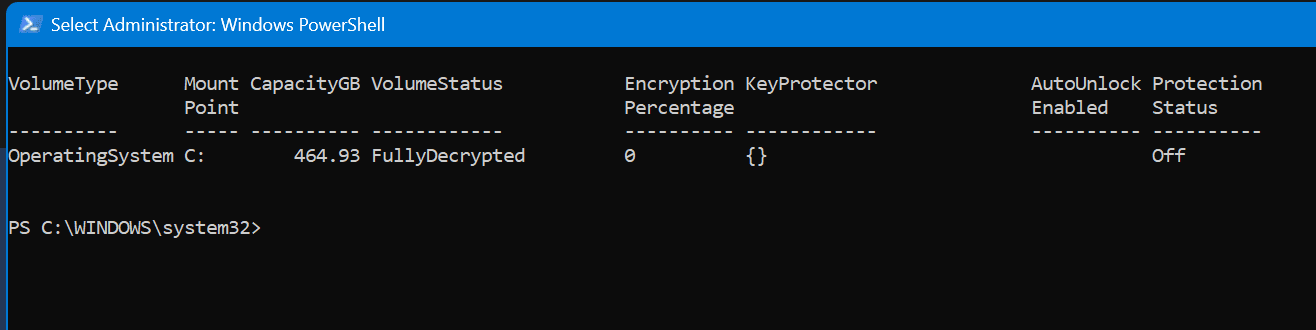 A real-world audit showing an unencrypted volume (
FullyDecrypted) with protection status Off. This is a primary security gap identified for remediation.
Remediation Logic (Conceptual)
In a hardened environment, we would use PowerShell to force encryption and escrow the recovery password to a secure location (or Entra ID).
# Conceptual remediation: Enable BitLocker with a recovery password
# Enable-BitLocker -MountPoint "C:" -RecoveryPasswordProtector -UsedSpaceOnly
Why This Matters
In enterprise environments, automation is king. But when automation fails, fundamental knowledge is what prevents a breach. This lab proves you have the skills to build the security engine, not just drive it.