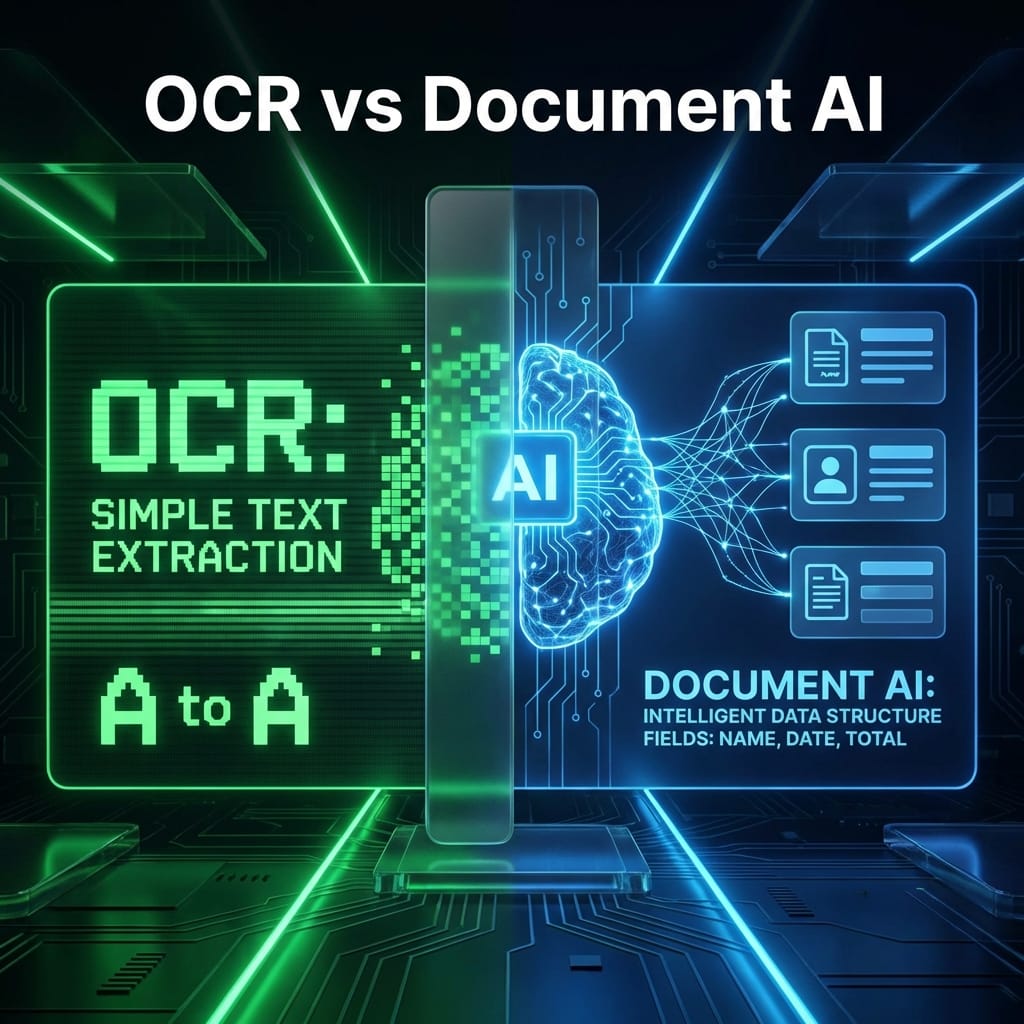
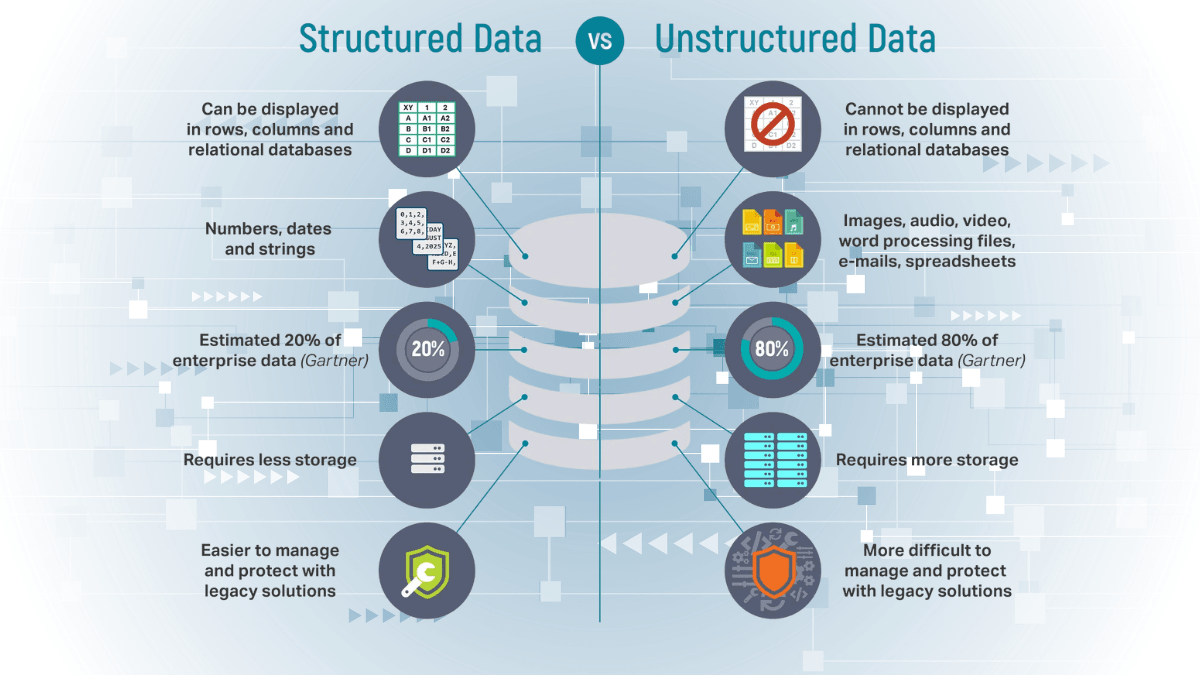
Document AI is more than just text recognition. Unlike traditional OCR, which gives you a wall of text, Google Cloud's Form Parser gives you structure.
But how does it actually work under the hood?
In this post, I’ll explain exactly what the Form Parser sees, how it decides what’s a "label" vs. "value," and when you should (or shouldn’t) use it.
Note: I used this exact parser setup when building my Document AI Starter tool.
What Form Parser Actually Extracts
Form Parser is a pre-trained model designed for structured documents like invoices, tax forms, and applications. It returns three main types of data:
-
Key-Value Pairs (Form Fields)
- Example: "Invoice Number: 12345"
- The parser identifies "Invoice Number" as the key and "12345" as the value.
- It handles layout variations surprisingly well (e.g., label above vs. label to the left).
-
Tables
- This is the killer feature. It detects grid structures, headers, and row items automatically.
- It returns structured rows, making it easy to loop through line items in code.
-
Checkboxes
- It detects whether a box is ticked or not, returning a boolean-like state.
How Confidence Scores Work
Every single entity returned by the API comes with a confidence score between 0.0 and 1.0.
- 0.99: The model is extremely sure.
- 0.50: The model is guessing.
Real-world advice: Never ignore this score. In my own tool, I implemented a threshold where any field below 0.7 confidence gets flagged for manual review. This prevents bad data from silently entering your database.
Common Extraction Mistakes
The model isn't magic. Here are common failure points I've seen:
- Handwriting mixed with typed text: It handles handwriting reasonably well, but struggling when it overlaps with typed lines.
- Low-resolution scans: If the scan is blurry (under 200 DPI), accuracy drops significantly.
- Complex Tables: Merged cells or nested tables can confuse the row detection logic.
When Form Parser is Better Than OCR
Use Form Parser when:
- You need structured data (key-value pairs).
- The document layout varies slightly but follows a general pattern (like invoices).
- You need to extract tables.
Use Traditional OCR (e.g., Tesseract) when:
- You just need raw text search (Ctrl+F).
- The document is a block of text (like a contract or book page).
- You don't care about field relationships.
When You Shouldn’t Use Document AI
If you are processing millions of pages of unstructured text (like novels or simple letters), Document AI Form Parser is usually expensive overkill. As of this review, Google’s public pricing page lists Form Parser at $30 per 1,000 pages in the lowest tier, while OCR and Layout Parser use different rates. Always verify the current processor pricing before estimating a project.
If your use case is purely archival (searching for keywords in old PDFs), standard OCR is cheaper and faster.
Want to try it yourself? Check out the Document AI Starter to see how I implemented this in Python.