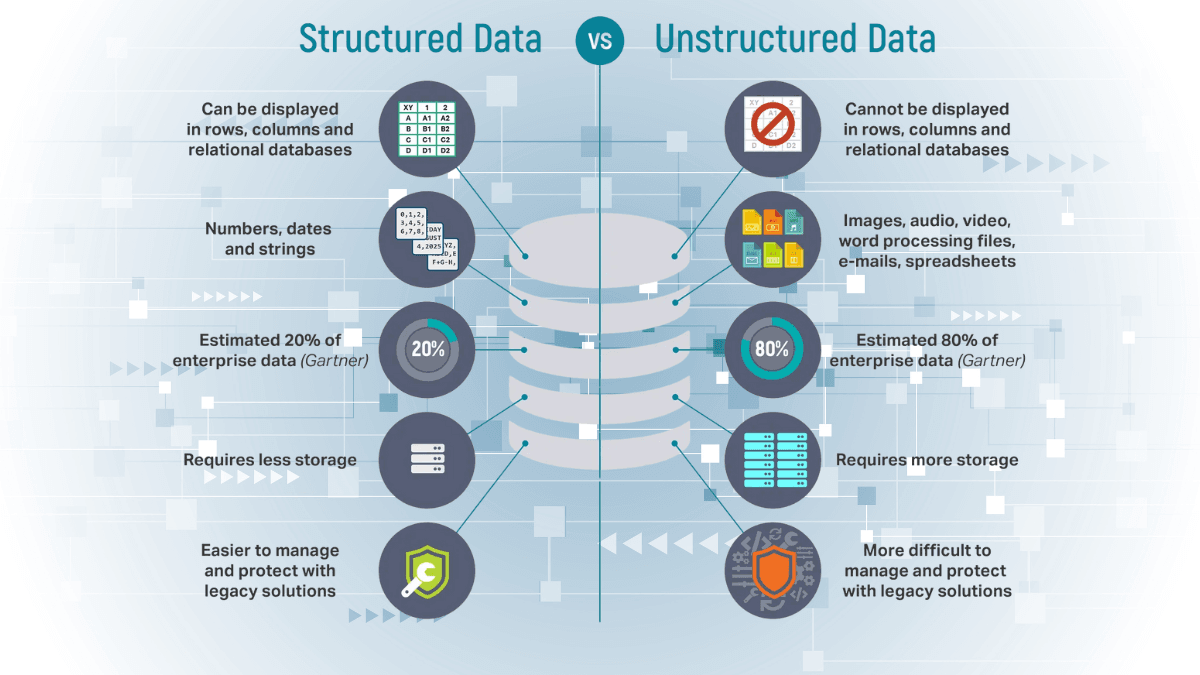
"I just need to get the total from these invoices. Should I use Tesseract?"
This is the most common mistake I see in automation projects. People start with "Optical Character Recognition" (OCR) because it’s often free or cheap, only to get stuck in a "Regex Hell" that costs thousands in developer hours later.
The choice isn't just about pixels—it's about understanding.
Why I switched: In my early Document AI experiments, I spent three days trying to "untangle" table text from Tesseract. With Document AI, I had structured JSON in three minutes.
Level 1: Plain OCR (The Transcriber)
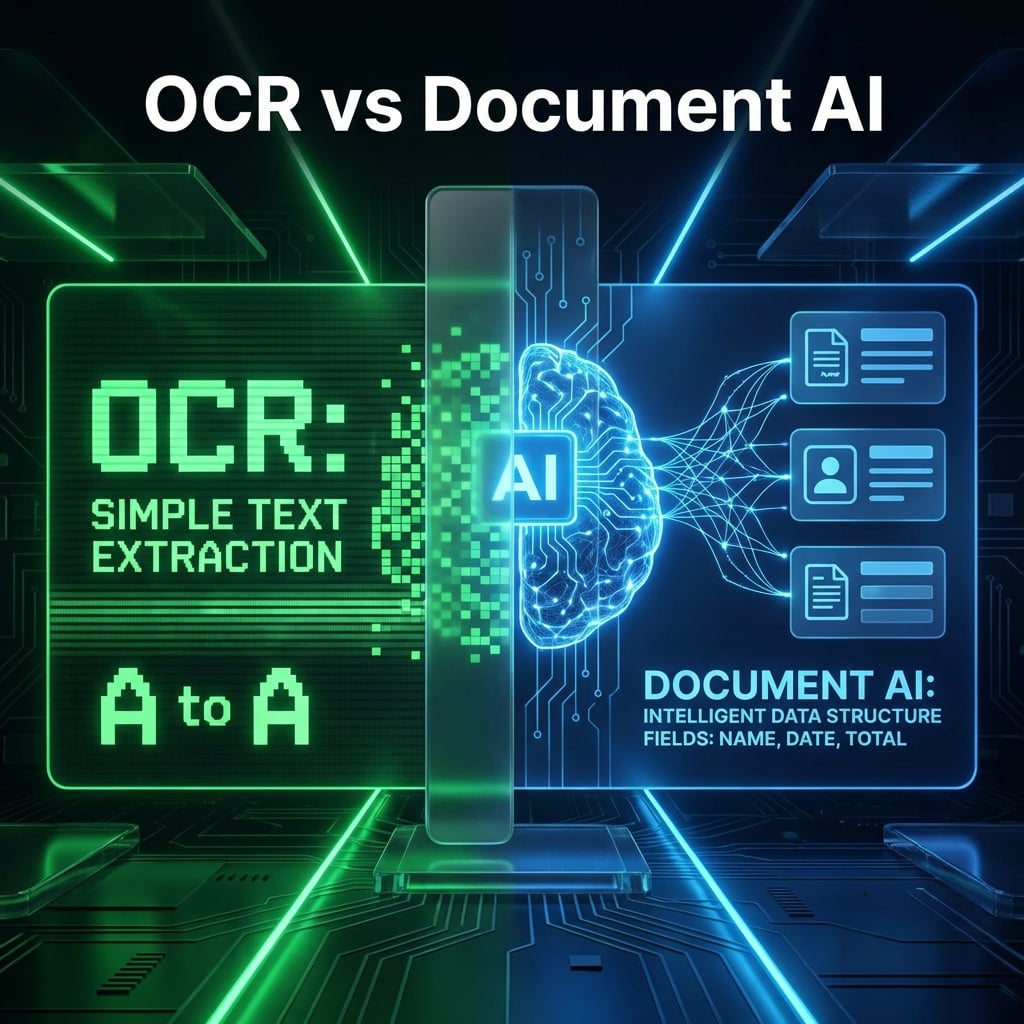
Optical Character Recognition (OCR) is essentially a digital transcriber. It looks at a grid of pixels and says, "That cluster of dots looks like an 'A'."
How it works:
Standard OCR (like Tesseract or early AWS Textract) provides Spatial Mapping. It gives you the text and its coordinates (H, W, X, Y) on the page.
The Problem: Spatial Jumbling
If your document has columns or tables, OCR reads left-to-right, top-to-bottom. If a table row is slightly tilted, the OCR might grab text from Row 1 and Row 2 and put them on the same line.
Example OCR Output:
Item Description Qty Price
Widget A 10 $100.00
This is a long 5 $50.00
description that wraps
To extract the price of "Widget B" (the wrap-around text), you’d need a recursive logic handler that understands sentence fragments. This is why simple OCR is expensive to maintain.
Level 2: Document AI (The Analyst)
Document AI (using Machine Learning models like LayoutLM) is more like an analyst. It looks at the semantics and layout hierarchy of the document.
How it works:
Instead of just "Pixels to Text," it does Entity Extraction. It identifies labels (e.g., "Total Due") and associates them with values (e.g., "$1,250.00"), regardless of where they sit on the page.
The Benefit: Schema-Ready Data
Document AI provides a structured output (usually JSON) where "Total Amount" is a specific field you can access immediately.
Example Document AI Output (JSON):
{
  "entities": [
    {
      "type": "total_amount",
      "mentionText": "$1,250.00",
      "normalizedValue": 1250.0
    }
  ]
}
The Decision Matrix
Not every project needs the "Nuclear Option" of Document AI. Here is a quick guide to choosing:
| Metric | Plain OCR (Tesseract / OCR API) | Document AI (Form Parser / Specialized) |
|---|---|---|
| Primary Output | Raw Text String | Structured Entities / JSON |
| Best For | Searchable PDFs, Plain Letters | Invoices, Receipts, ID Cards, Tables |
| Accuracy | High on clean text, Low on tables | High on complex layouts & handwriting |
| Dev Effort | High (Custom parsing/Regex) | Low (Direct API consumption) |
| Cost | Low (1.50 per 1k pages) | Medium (65 per 1k pages) |
| Speed | Very Fast | Slightly Slower (ML Overhead) |
Code Comparison: The "Success" Metric
Let’s look at what the code actually looks like for both approaches when trying to extract an Invoice Number.
The OCR Approach (The "Regex Hell")
You have to hope the invoice number is always preceded by the exact word "Invoice #".
import re

raw_text = "Standard OCR Output: Invoice # 123456 Date: 2024-01-01..."

# Brittle: Fails if it says 'Inv No.' or 'InvoiceID'
invoice_match = re.search(r"Invoice\s*#\s*(\d+)", raw_text)
if invoice_match:
    invoice_id = invoice_match.group(1)
The Document AI Approach (The Analyst)
The model has been trained on 100,000+ invoices. It knows that even if the text says "Inv #", "No.", or "Ref", it represents the same concept.
# Assuming you've called the API and got the 'document' object
for entity in document.entities:
    if entity.type_ == "invoice_id":
        invoice_id = entity.mention_text
        print(f"Found Invoice ID: {invoice_id}")
The Winner: Document AI. It handles the "synonym" problem and "spatial" problem automatically.
Three Killer Use Cases for Document AI
1. The "Wobbly" Table
If you have scanned documents where the paper was slightly crumpled or tilted, plain OCR will jumble the rows. Document AI uses visual anchors to keep rows aligned, even if they aren't perfectly horizontal.
2. Handwriting & Cursive
If your automation needs to read "Notes" sections filled out by humans, Tesseract will return gibberish. Google’s Document AI is trained on multi-lingual handwriting and is often more accurate than a human reading the same note.
3. Low-Contrast Scans
Faint grey text on a white background? Document AI uses specialized computer vision pre-processing to "normalize" the image before reading, which vastly outperforms standard binary thresholding used in simple OCR.
The Hybrid Pipeline: The Professional Choice
If you're worried about costs, don't choose one or the other. Use both.
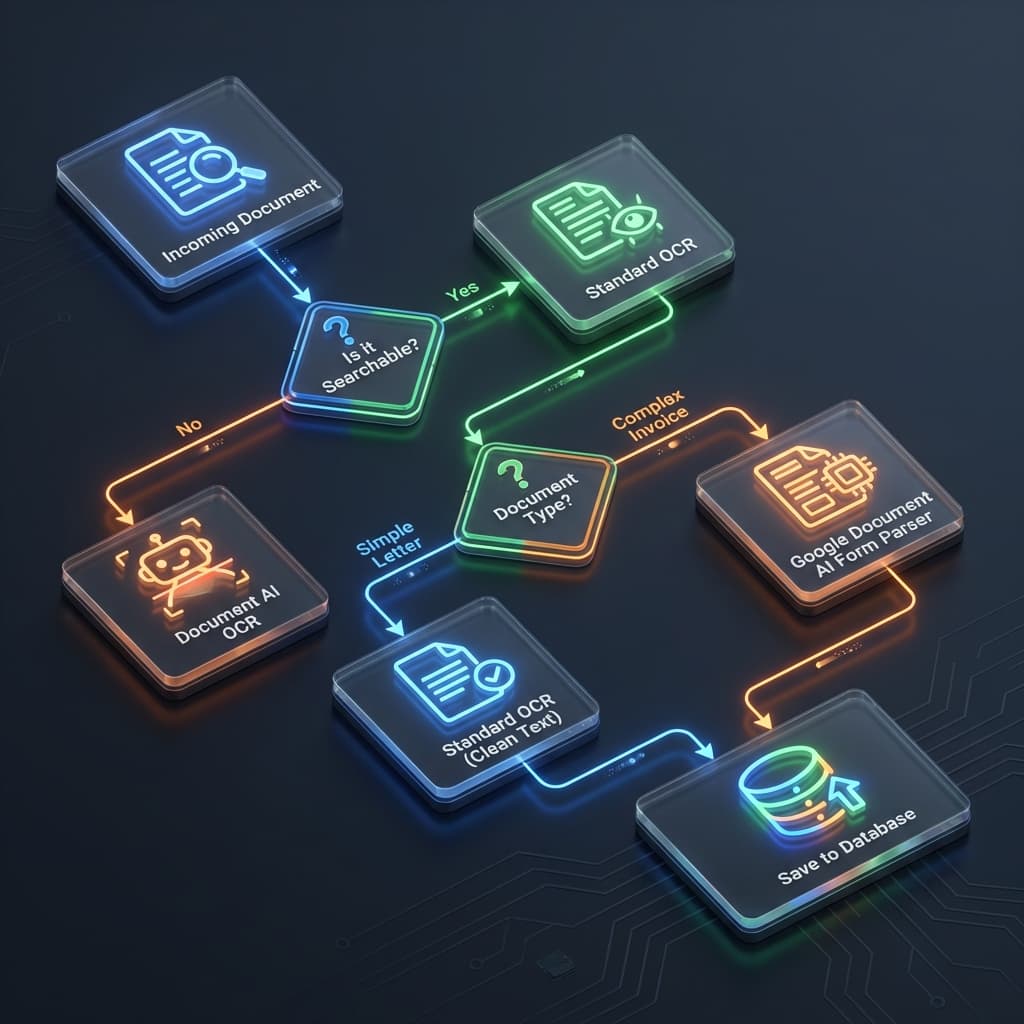
How it works:
- Use Basic OCR (very cheap) to read the first 100 words.
- Use Keyword Detection to classify the document (Invoice vs. Memo).
- If it's a Memo, stop (save $0.06).
- If it's an Invoice, send only that page to the Form Parser.
This strategy can reduce your Google Cloud bill by 40-60% while maintaining 100% accuracy for critical data.
Checklist: Which one should you choose?
Choose Plain OCR if:
- You only need to make a PDF "searchable".
- The content is 90% paragraphs/sentences (no columns).
- You have a $0 budget and unlimited developer time.
Choose Document AI if:
- You need to put the data into a database or Excel.
- The layout changes between different vendors/providers.
- There are tables involved.
- You need to read handwriting.
- You want your automation to be "set and forget."
Bottom Line
OCR puts text on a screen. Document AI puts data in your database.
If your time is worth more than $50/hour, stop writing Regex and start using a semantic parser.